How to Take a Full Page Screenshot of a Website on Mac
How to take a full page screenshot of a website on Mac in Chrome, Safari and Shotbase. Capture an entire webpage from top to bottom, without stitching, plus when to use scrolling capture or different screen sizes instead.
· 7 min read
Key takeaways
- A full page website screenshot captures the whole webpage from top to bottom, not just what fits in the window. The Mac Screenshot app cannot do this on its own.
- In Chrome, open DevTools, press Command + Shift + P, type screenshot, and choose the full size or full page screenshot command.
- In Safari, use Web Inspector to capture the html element, or export the page as a PDF when you need a document instead of a PNG.
- Shotbase's webpage capture takes a full page or just the viewport from a URL, and the result lands in the same library as your other captures.
- Use this guide for an entire webpage. Use our scrolling guide for chats and documents, and our screen size guide when you need the same site at phone, tablet and desktop widths.
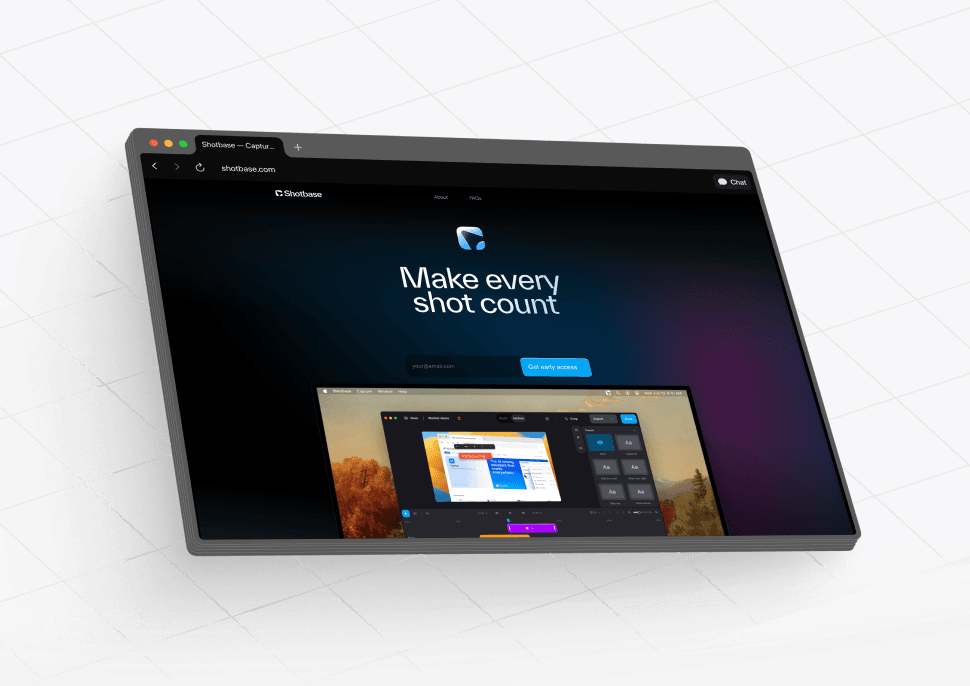
Short answer: a full page screenshot of a website is a single image of the entire page, from the top of the document to the bottom, not just the part you can see. The Mac Screenshot app cannot do that. In Chrome, capture it from DevTools. In Safari, use Web Inspector, or save the page as a PDF. In Shotbase (our app), paste the URL into webpage capture and take the full page in one step.
This is a website guide. If the thing you need to capture is a long chat, a document or a window in any app, use How to Take a Scrolling Screenshot on Mac. If you need the same site at phone, tablet and desktop widths, use How to Screenshot a Website at Mobile, Tablet and Desktop Sizes on Mac.
What "full page" means, and what it does not
People use "full page," "scrolling" and "long screenshot" as if they were the same thing. For a website, a full page screenshot means the whole HTML document at the width it is currently using: header, content, footer, and everything in between, in one file.
That is different from:
A regular Mac screenshot. Apple's screenshot guide covers the entire screen, a window or a portion of the screen. None of those continue past the visible area.
A scrolling screenshot of any app. That problem shows up in Messages, Notion, code editors and Finder, not only in browsers. The scrolling guide covers that, including Shotbase's scrolling capture, which works in any app.
A responsive set. Product and design work often needs the same URL at 390, 768 and 1440 pixels wide. That is the screen size guide, which also covers dark mode.
Use this page when you want one complete picture of a webpage, usually at its normal desktop or laptop width.
Method 1: a full page screenshot in Chrome
Chrome DevTools can capture the full page, including content above and below the viewport. Chrome documents the Command Menu in Run commands, and its DevTools tips describe capturing a full-page screenshot.
Open the webpage in Chrome and let it finish loading. Scroll once so lazy images have a chance to appear.
Open DevTools: View > Developer > Developer Tools, or Option + Command + I.
Open the Command Menu with Command + Shift + P. (That is the Mac shortcut from Chrome's own docs. Do not confuse it with Command + P, which opens a file.)
Type
screenshot.Choose the command for a full size or full page screenshot. Chrome downloads a PNG of the entire page.
You can also capture a node or an area from the same menu, which is useful when you only need one section. For a whole site capture, stick to the full page command.
Chrome is the fastest free option if you already work in it. The capture is the page at the current width, so resize the window first if you want a narrower or wider result. For a planned set of device widths, the screen size guide is a better path, because DevTools device mode is built for that job.
Method 2: a full page screenshot in Safari
Safari does not offer a full page option in the regular Screenshot toolbar. You have two solid built-in paths: an image from Web Inspector, or a PDF of the page.
Option A: Web Inspector (an image file)
This is the same developer-tool method we use in our scrolling screenshot guide, applied here to a full webpage.
In Safari, choose Safari > Settings > Advanced, and enable Show features for web developers.
Open the page, then choose Develop > Show Web Inspector, or press Option + Command + I.
In the Elements view, select the top-level
htmlelement.Open the element's context menu and choose Capture Screenshot, then save the PNG.
Scroll the page first so lazy-loaded images are on the page before you capture. If a section lives in its own scrollable panel, this method may still miss that inner pane. In that case, capture the panel on its own or use a dedicated webpage capture tool.
Option B: save or export the page as a PDF
If you need a document you can search, print or archive, a PDF is often better than a very tall PNG. Apple's guide to saving part or all of a webpage in Safari covers File > Save As as a Web Archive or as Page Source. For a visual copy, use Safari's File > Export as PDF, or print the page and choose Save as PDF.
A PDF is not a screenshot in the strict sense, but it is the official, no-extension way to keep an entire Safari page in one file.
Method 3: full page webpage capture in Shotbase
We build Shotbase. Webpage capture is one of the reasons we built it: you paste a URL, choose a size, and take the full page or only the viewport, in light or dark mode. That is how the product is described in the FAQ on shotbase.com: Shotbase supports "full-page or viewport-based webpage captures across custom breakpoints and light or dark mode."

The capture bar has a URL field, a capture button, a size (1920 by 1080 in the example above), and Scroll and Config options. A dedicated keyboard shortcut for webpage capture was added in version 1.4.0.
A simple full page workflow looks like this:
Start a webpage capture in Shotbase and paste the URL.
Keep the size at the width you want to archive. For a standard desktop capture, a wide viewport such as 1920 by 1080 is a reasonable default.
Choose the option that captures the full page, not only the visible viewport, then capture.
Open the result in the static editor if you want a background, frame, shadow, border or annotations.
The capture goes into the same library as your screenshots and recordings. On Macs with Apple silicon, optional on-device AI can name, tag and summarize it, and search also finds the text inside your screenshots. Shotbase does not upload the capture unless you create a shareable link or use another cloud-based feature.
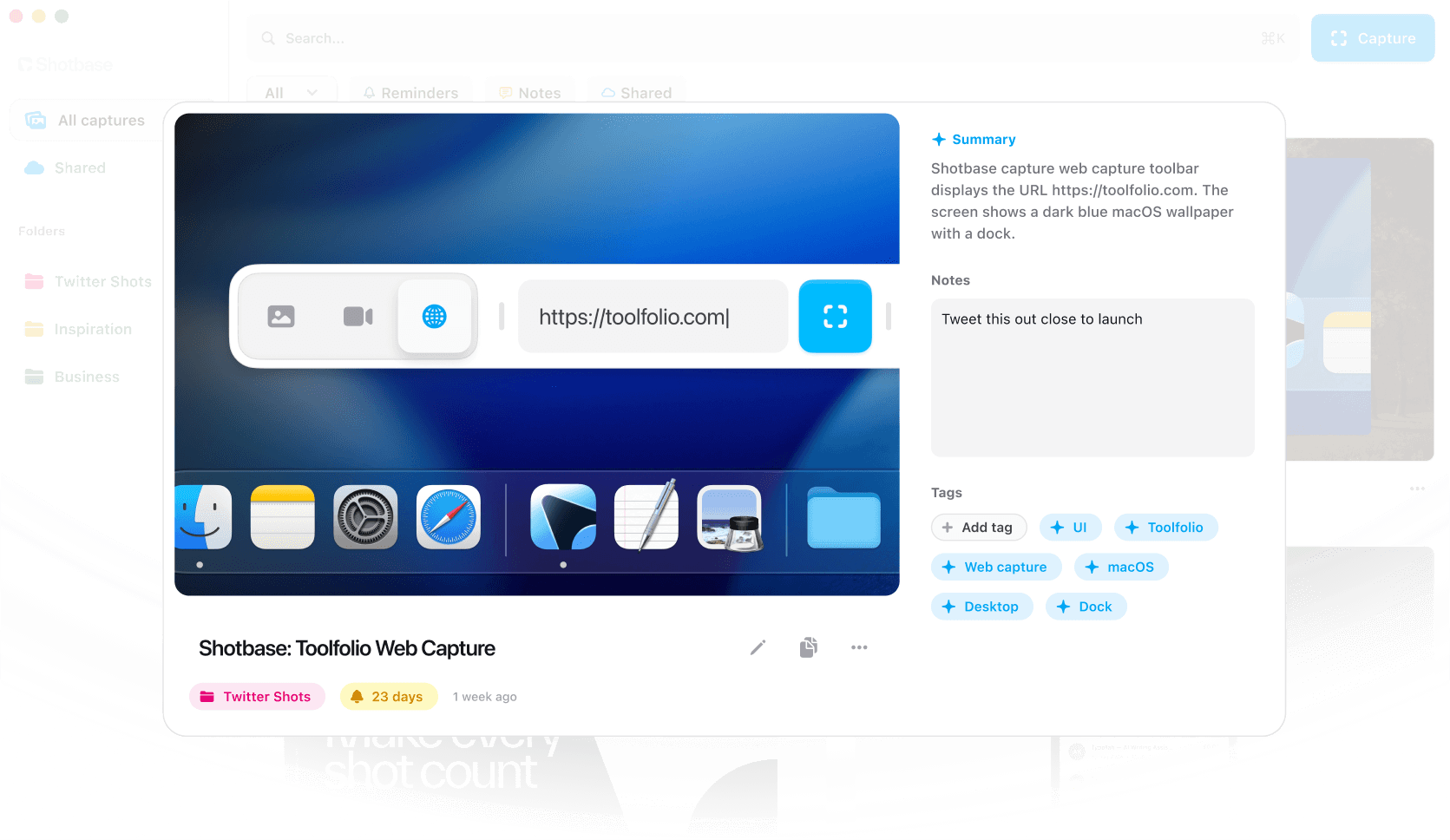
Use webpage capture when the source is a URL and you want the whole document. Use scrolling capture when the long content is already on screen in any app, including ones that are not a browser.
Which method should you choose?
You are already in Chrome and need one PNG quickly: DevTools, full page screenshot.
You are already in Safari and need an image: Web Inspector on the
htmlelement.You need a file you can archive or search as a document: Safari as PDF.
You take website shots often, in a set of sizes, or you want them named, tagged and editable in one library: Shotbase webpage capture.
The "page" is not a website: the scrolling screenshot guide.
Tips for a clean full page screenshot
Wait for the page to settle. Ads, cookie banners and lazy images change the height if you capture too early. Scroll once, dismiss the banner, then capture.
Watch sticky headers. A header that stays on screen while you scroll can repeat in some stitching tools. Browser full page captures and webpage capture avoid a lot of that, but a fixed header may still cover content. Hide it in DevTools if you need a clean document.
Do not confuse width with length. A full page shot at a tiny window width is still a full page, just a narrow one. Set the width on purpose.
Very long pages make very large files. For a 20,000 pixel article, a PDF or a viewport crop of the section you need may be easier to share than a giant PNG.
Frequently asked questions
How do I take a full page screenshot of a website on Mac?
In Chrome, open DevTools, press Command + Shift + P, type screenshot, and choose the full size or full page command. In Safari, capture the html element in Web Inspector, or export the page as a PDF. In Shotbase, paste the URL into webpage capture and take the full page.
Can the Mac Screenshot app capture a whole webpage?
No. Shift + Command + 3, 4 and 5 only capture what fits on the screen, in a window, or in a selection. Apple's screenshot guide does not include a full page website option.
Is a full page screenshot the same as a scrolling screenshot?
On a website, they often produce a similar image: the whole page, top to bottom. "Scrolling screenshot" also covers long content in other apps. Use this guide for websites, and the scrolling guide when you are outside the browser.
How do I screenshot a website at mobile and desktop sizes?
That is a different job. See How to Screenshot a Website at Mobile, Tablet and Desktop Sizes on Mac. Shotbase webpage capture can do both: a full page, and a capture at a custom breakpoint.
Does Shotbase upload my webpage captures automatically?
No. Screenshots, recordings and project files remain local by default. Shotbase only uploads a capture when you explicitly create a shareable link or use another cloud-based feature.
Try Shotbase for your next full page website screenshot
If you capture websites often and want the result in the same library as your other shots, try Shotbase free for 7 days. No card is required.