The Best Screenshot Apps for Mac in 2026, Compared
The macOS screenshot tool is fine for quick grabs. Once you need scrolling capture, annotation, OCR, recording or share links, one of these apps will save you time. We compare Shotbase, CleanShot X, Shottr, Xnapper and Snagit on features and real prices, and say where each one fits.
· 9 min read
Key takeaways
- The built-in Screenshot app (Shift + Command + 5) is enough for occasional captures, but it has no scrolling capture, OCR or share links.
- Shotbase covers screenshots, scrolling capture in any app, recordings with motion and webpage capture, and its search finds the text inside your screenshots.
- CleanShot X is the most established all-rounder: $35 once, with a year of updates.
- Shottr is the best value: free to use, $12 for a license, with pixel tools and scrolling capture.
- Xnapper is the fastest way to make screenshots look good for social posts. Snagit suits documentation teams on Mac and Windows.
Short answer: if you take screenshots every day and also record your screen, Shotbase (our app) is the pick: scrolling capture in any app, screen recordings with automatic zooms, and a library you can search by name, tags or the text inside your screenshots. If you only need screenshots, CleanShot X is the most established all-rounder. Shottr is the best value for fast captures and pixel tools. Xnapper is the quickest way to make screenshots look good for social posts. Snagit fits documentation teams that work across Mac and Windows.
If you only take a screenshot now and then, the tool already built into macOS may be all you need. Here is how to tell, and how the apps compare.
How we compared them
Every feature and price in this guide comes from each app's own website, checked in November 2026. Prices change, so check the linked pages before you buy. We make Shotbase, so we have tried to be upfront about where another app is the better choice.
We looked at five things that decide whether an app is worth paying for:
Capture: area, window, full screen, and scrolling capture for content that does not fit on screen.
Editing: annotation, blur or redaction, and backgrounds for screenshots you share.
Text recognition (OCR): copying text out of anything on screen.
Sharing and recording: share links, screen recording, GIFs.
Price and model: one-time license or subscription.
Do you even need a screenshot app?
macOS has a capable tool built in. Press Shift + Command + 3 for the full screen, Shift + Command + 4 for an area (press Space to switch to a window), or Shift + Command + 5 to open the Screenshot app with on-screen controls, screen recording and options such as a timer and the save location. After a capture, a thumbnail appears in the corner so you can mark it up.
It is free and reliable. What it does not do is capture a scrolling page or chat, add a background to make a screenshot presentable, blur sensitive details quickly, or give you a share link. If you keep reaching for those things, an app will pay for itself in saved time.
The best screenshot apps for Mac at a glance
| App | Price | Scrolling capture | OCR | Screen recording | Best for |
|---|---|---|---|---|---|
| Shotbase | 7-day free trial, then $13 a month billed yearly or $25 monthly | Yes, in any app | Text extraction, and search finds text inside screenshots | Yes, with motion editor | Screenshots plus recordings, with a searchable AI library |
| macOS Screenshot | Free | No | No (Live Text in Preview) | Yes, basic | Occasional captures |
| CleanShot X | $35 once, or Pro $10 per user a month billed yearly | Yes, vertical and horizontal | Yes | Yes, with Studio Mode | Daily all-round use |
| Shottr | Free to use, $12 license | Yes | Yes, plus QR codes | Not listed | Developers and designers on a budget |
| Xnapper | Free with watermark, from $29.99 once | Not listed | Yes | Not listed | Good-looking social screenshots |
| Snagit | $39 per user a year | Yes | Yes | Yes | Documentation and guides, Mac and Windows |
1. Shotbase: best for screenshots, recordings and finding them again
We build Shotbase, so we put it first. We made it for people who capture a lot and need to find things again later, and we will be clear about where another app fits better. Shotbase covers the full trip from capture to share:
Capture: area, window and full screen, scrolling screenshots in any app (chats, documents and code editors, not just the browser), screen recordings, and webpage capture of the full page or just the viewport, at mobile, tablet, desktop or any custom breakpoint, in light or dark mode.
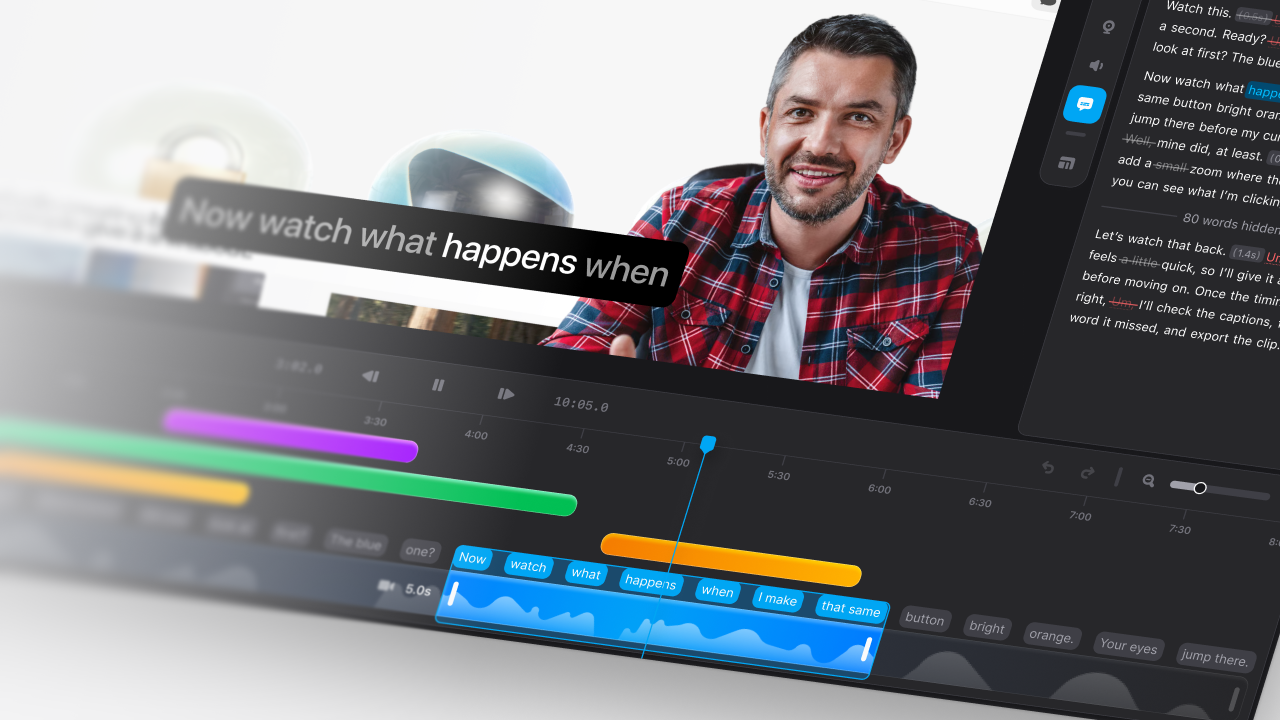
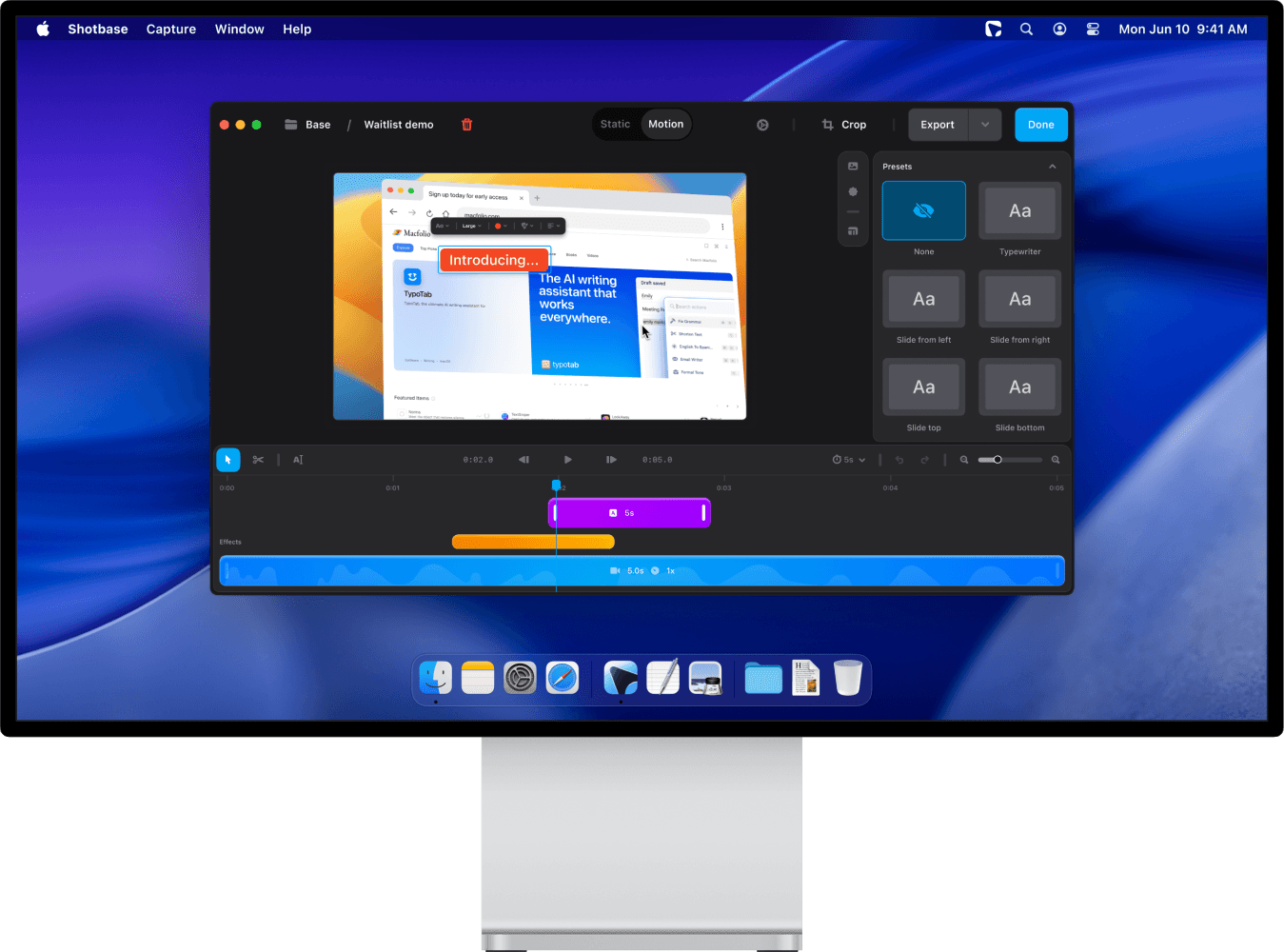
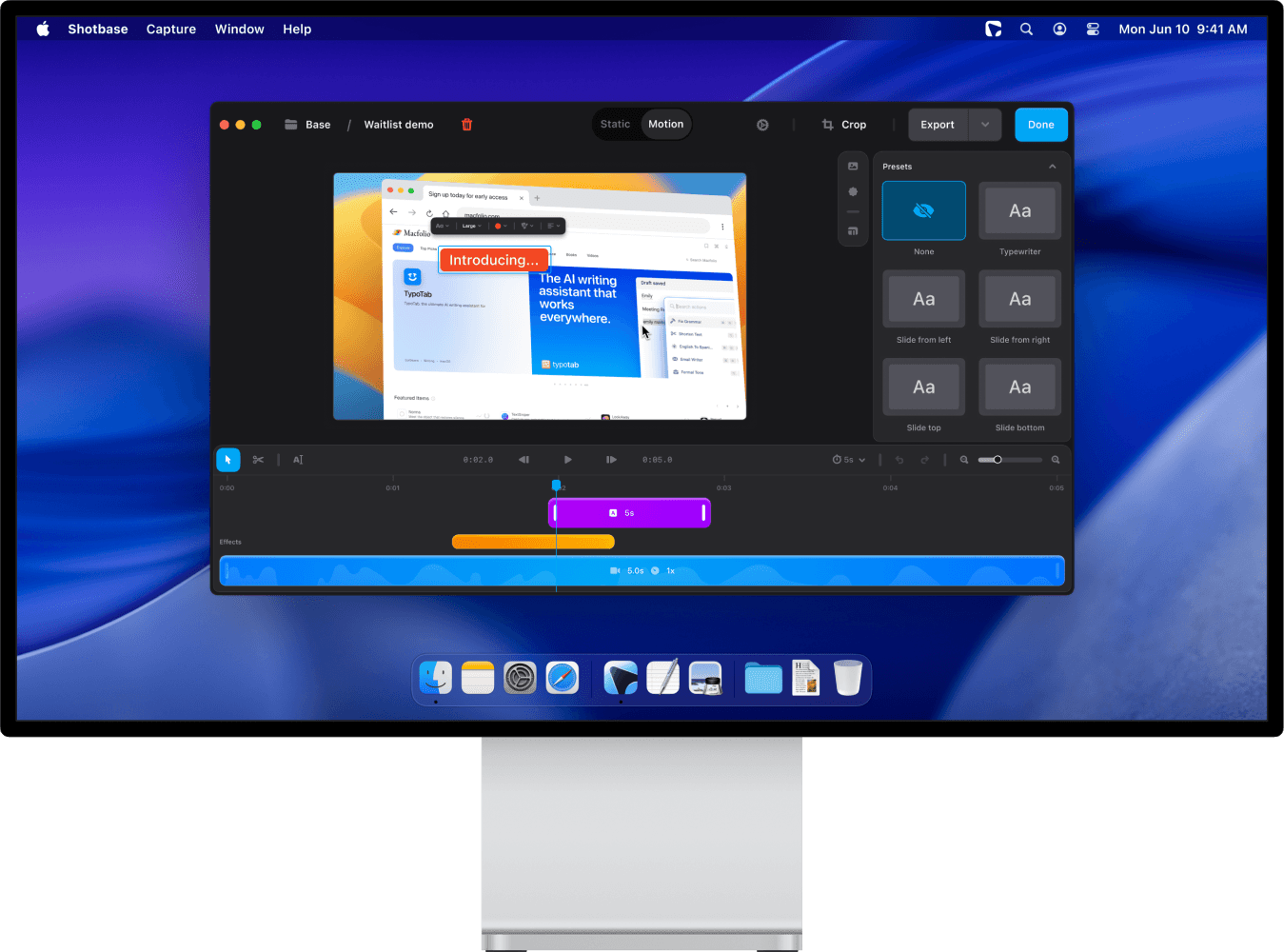
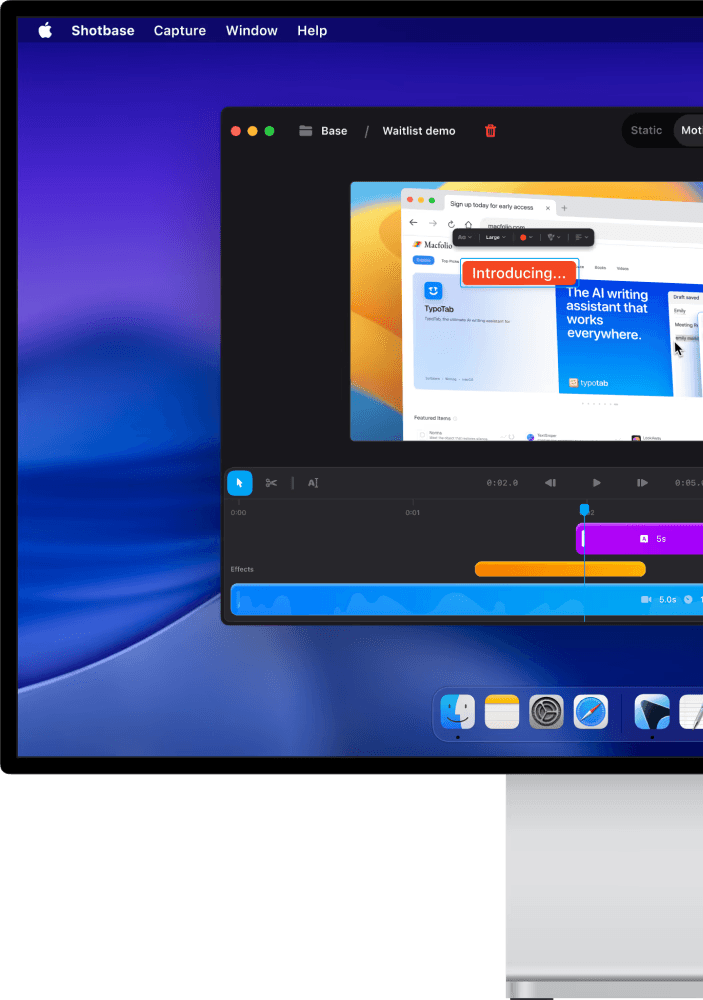
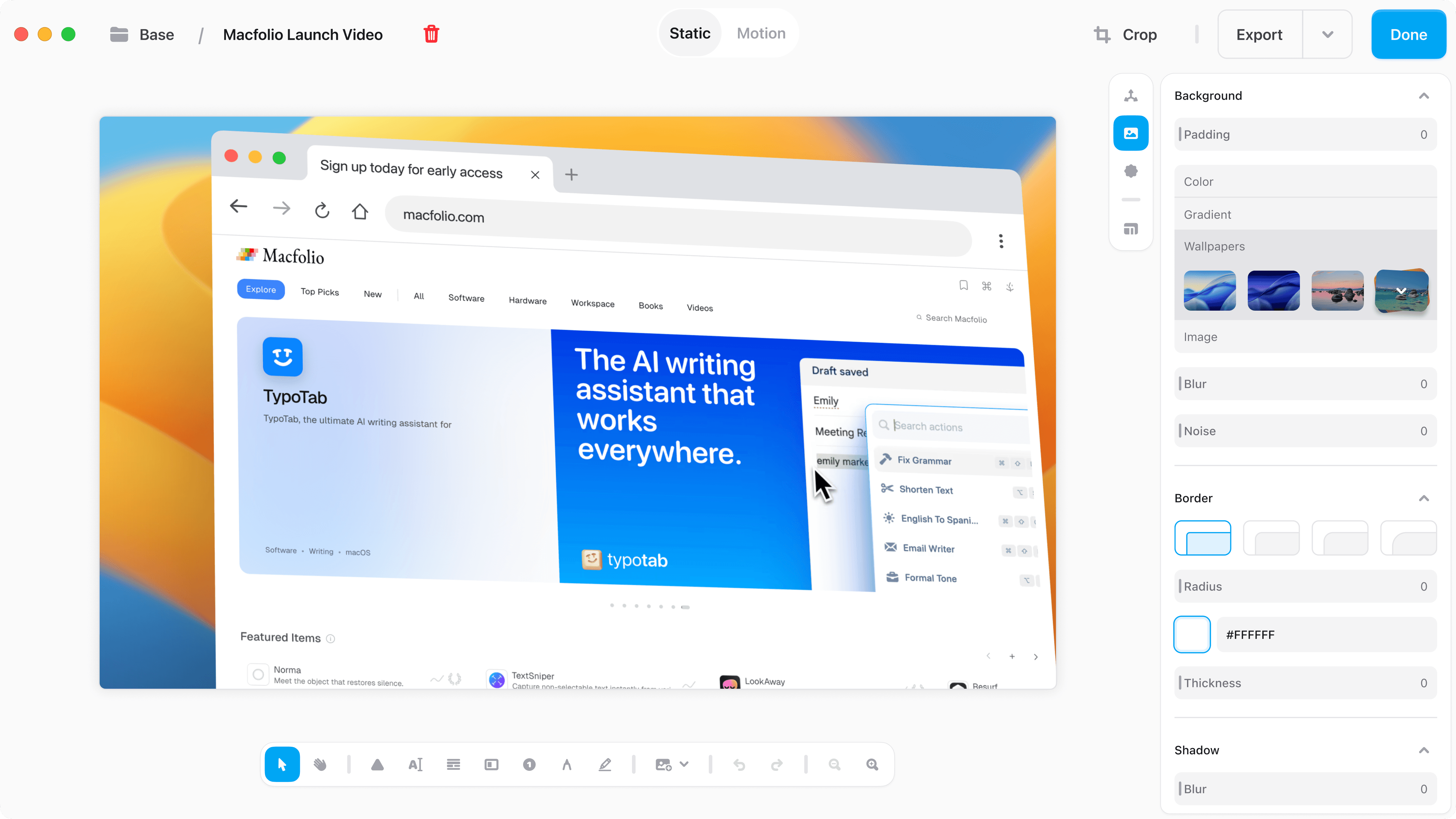
Edit: one editor for static and motion work. Add backgrounds, frames, shadows, borders and watermarks, plus arrows, text, highlights, shapes and callouts. For recordings, add automatic zooms, 3D transforms and text effects.
Organize and search: on-device AI gives every capture a useful name, tags and a short summary. Search covers those names and tags and also the text inside your screenshots, so a word you remember from an error message or a chat is enough to find a capture. The AI runs on your Mac and your image content is not sent to a remote model. It needs Apple silicon and it is optional.
Share: create a link to any finished capture and paste it anywhere. Viewers open it in their browser and can leave comments, without Shotbase.
Price: a 7-day free trial with no card required. Shotbase Pro is $13 a month billed yearly ($156 a year), or $25 month to month. After the trial you can keep capturing, editing and organizing, but Pro is needed to export new work and create share links.
Skip it if: you want a one-time purchase, you only need quick screenshots, or you need pixel measuring tools. Shottr or CleanShot Basic will cost you less.
2. CleanShot X: best all-rounder
CleanShot X has been the default recommendation for Mac screenshots for years, and it still earns it. It captures an area, a window, the full screen, or a scrolling window in any app, both vertically and horizontally. You can freeze the screen to capture menus and moving things, show a crosshair and magnifier, and set a self-timer.
The editor covers arrows, shapes, text, a counter for step-by-step guides, highlighter, spotlight, and both pixelate and blur. A background tool with presets and an Auto Balance option makes screenshots ready for social posts. There is also OCR, floating pinned screenshots, a capture history and a Quick Access Overlay after every capture. Version 5.0 (September 2026) added Studio Mode, a video editor with smart zooms, so it now covers polished screen recordings too.
Price: CleanShot Basic is $35 once, with one year of updates and an optional $19 a year renewal, plus 1 GB of cloud storage. CleanShot Pro is $10 per user a month, billed annually, with unlimited cloud storage and team features. There is no free trial, but there is a 30-day money-back guarantee, and CleanShot is included in Setapp. It requires macOS 13.0 or newer.
Skip it if: you want AI organization of your library or webpage capture at specific breakpoints.
3. Shottr: best value
Shottr is a tiny native app optimized for Apple silicon. Its site says it takes about 17 ms to grab a screenshot. It covers scrolling screenshots in any app, OCR that also reads QR codes, backgrounds with gradients and rounded corners, pixelation and object removal, pinned screenshots and annotation.
Where it stands out is precision. Shottr has a screen ruler for measuring distances, a color picker, and a zoom that works like a magnifying glass on your pixels. Its site pitches it at designers, front-end engineers and mobile developers. It can also upload to your own S3-compatible storage.
Price: free to use for as long as you want. After 30 days it starts asking you to consider buying. A Basic license is $12 once and is required for commercial use. A Friends Club tier adds experimental features and better support.
Skip it if: you need screen recording, hosted share links or a polished library.
4. Xnapper: best for good-looking screenshots
Xnapper is built around one idea: turn a raw screenshot into a share-ready image in about two seconds. It balances your screenshot automatically, picks a background color, and can redact emails, credit card numbers, IP addresses and API keys in one click. It also has text selection using the macOS vision engine, social media sizes and ratios, presets and a screenshot history.
Price: free to use with a watermark. One-time licenses start at $29.99 for one Mac (Basic), $54.99 for two (Personal) and $79.99 for three (Standard), each with one year of updates and an optional renewal at 40% off. A Team plan is $5 per device a month, billed annually. It requires macOS 10.15 or later, and there is a 30-day money-back guarantee.
Skip it if: you need scrolling capture or screen recording. Its site does not list either.
5. Snagit: best for documentation teams
Snagit from TechSmith has been around for a long time and is aimed at people who write guides and training material. It has scrolling capture for long windows and webpages, Step Capture that builds a guide as you click through a process, Smart Redact for sensitive information, text recognition, and templates that turn screenshots into step-by-step guides. It also records your screen with webcam and audio, keeps captures in a searchable library with tags, and shares through TechSmith's Screencast service. It runs on both Mac and Windows, which helps mixed teams.
Price: Snagit Individual is $39 per user a year, billed yearly. It needs macOS 14 or later, includes a 14-day money-back guarantee, and comes with up to 25 videos on Screencast, TechSmith's hosting service.
Skip it if: you work alone on a Mac and do not need guide templates. The lighter Mac apps above are faster for everyday captures.
Which screenshot app should you choose?
You take a few screenshots a week: stay with the built-in tool and learn Shift + Command + 5.
You also record your screen, capture websites at different sizes, or need to find old captures by what they say: Shotbase.
You want one polished app for everything you capture: CleanShot X.
You want the most for the least money, or measure pixels for a living: Shottr.
Most of your screenshots end up in posts and launch pages: Xnapper.
You write documentation and your team uses Windows too: Snagit.
What to look for in a Mac screenshot app
If none of the picks above fit exactly, these are the features worth checking before you buy:
Scrolling capture that works outside the browser, in chats, documents and code editors. Browsers can capture a full page on their own, but other apps cannot. See our guide on how to take a scrolling screenshot on Mac.
Fast redaction, so you never share an email address or API key by accident.
Backgrounds and presets if your screenshots go into posts, slides or docs.
A searchable history. The more you capture, the more this matters. The best ones search the text inside your screenshots, not just file names.
Where your files go. Check whether the app uploads anything automatically, and whether cloud storage costs extra.
The pricing model. One-time licenses usually include a year of updates. Subscriptions keep you current but cost more over time.
Frequently asked questions
What is the best free screenshot app for Mac?
The built-in Screenshot app is free and covers basic captures and recordings. Shottr is free to use, with scrolling capture, OCR and pixel tools. After 30 days it starts asking you to consider buying, and a $12 license is required for commercial use.
Is CleanShot X worth it?
If you take screenshots daily, most likely yes. For $35 once you get scrolling capture, OCR, annotation, backgrounds, recording with smart zooms and cloud sharing, with a year of updates.
Which Mac screenshot app can search the text inside screenshots?
Shotbase can. Its search covers the names and tags its AI gives each capture and also the text inside your screenshots, so you can find a capture by a word that appears in it. Without an app, Spotlight can find text in images through Live Text in supported languages, but you still name and sort the files yourself.
Can the Mac take a scrolling screenshot without an app?
Only inside a browser. Chrome, Firefox and Safari can capture a full webpage. For chats, documents and other apps you need a screenshot app with scrolling capture. Shotbase, CleanShot X and Shottr all capture scrolling content in any app.
Which screenshot app is best for developers?
Shottr is built with developers in mind, with a screen ruler, color picker and pixel zoom. If you build websites, a tool that captures a page at several breakpoints and in dark mode, like Shotbase's webpage capture, saves resizing your browser by hand.
Do screenshot apps upload my screenshots?
It depends on the app. Many keep files on your Mac and only upload when you create a share link. Shotbase keeps screenshots, recordings and project files on your Mac by default, and only uploads a capture when you choose to create a share link or use another cloud feature.