How to Take a Scrolling Screenshot on Mac (4 Ways That Work)
macOS can't take a scrolling screenshot on its own, but your browser can, and a screenshot app can do it in any app. Here is every method, step by step: Chrome DevTools, Firefox, Safari, and screenshot apps with scrolling capture, plus fixes for blank images and repeating headers.
· 9 min read
Key takeaways
- macOS has no built-in scrolling screenshot. Shift + Command + 5 only captures what fits on screen.
- Chrome can capture a full page from DevTools with the Capture full size screenshot command.
- Firefox has the easiest option: right-click, Take Screenshot, then Save full page.
- Safari can capture a page through Web Inspector or save it with Export as PDF.
- For chats, documents and apps outside the browser, use a screenshot app with scrolling capture.
Short answer: macOS does not have a built-in scrolling screenshot. The Screenshot app (Shift + Command + 5 (⇧⌘5)) only captures what fits on your screen: the full screen, a window, or a selected area. To capture a long page, use one of these instead:
Chrome: open DevTools, run "Capture full size screenshot" from the Command Menu.
Firefox: right-click the page, choose Take Screenshot, then Save full page.
Safari: use Web Inspector's Capture Screenshot on the
htmlelement, or save the page as a PDF.A screenshot app with scrolling capture, which also works outside the browser, in chats, documents and code editors.
Below are the exact steps for each, plus fixes for the most common problems like blank images and repeating headers.
Can you take a scrolling screenshot on a Mac?
Not with the tools Apple ships. Apple's own guide to taking a screenshot on Mac lists three kinds of capture: the entire screen, a portion of the screen, and a window or menu. The Screenshot app adds a timer, a save location and a few options, but nothing that scrolls.
That is why so many people end up taking five screenshots and stitching them together by hand. You do not have to. If the long thing you want to capture is a webpage, every major browser on Mac already has a hidden full page capture. If it is anything else, such as a Slack thread, a long email, a design file or a code file, you need a screenshot app that supports scrolling capture.
Here is a quick way to pick a method:
| What you want to capture | Best method |
|---|---|
| A webpage, and you use Chrome | Chrome DevTools |
| A webpage, and you use Firefox | Firefox Take Screenshot |
| A webpage, and you use Safari | Web Inspector or Export as PDF |
| A chat, document, or anything outside the browser | A screenshot app with scrolling capture |
| A webpage at a specific screen size, or in dark mode | A screenshot app with webpage capture |
Method 1: Take a full page screenshot in Chrome
Chrome has a full page screenshot built into its developer tools. You do not need to be a developer to use it.
Open the page you want to capture.
Press Command + Option + I (⌥⌘I) to open DevTools. You can also go to the Chrome menu, then More Tools, then Developer Tools.
Press Command + Shift + P (⇧⌘P) to open the Command Menu.
Type screenshot.
Choose Capture full size screenshot.
Chrome saves a PNG of the whole page to your Downloads folder.
Useful extras in Chrome
The same menu has a few other screenshot commands worth knowing:
Capture screenshot saves just the visible part of the page.
Capture area screenshot lets you drag to select part of the page.
Capture node screenshot saves only the element you have selected in the Elements panel, which is handy for grabbing a single card, chart or section.
You can also switch on the device toolbar in DevTools (the icon that looks like a phone and a tablet) to set a custom width and height, then choose Capture full size screenshot from its menu. That is the quickest free way to grab a mobile sized version of a page.
Where Chrome falls short
The DevTools method works best on normal, document style pages. On web apps where the content scrolls inside a panel, such as some email clients or online editors, it may only capture what fits in the window.
Method 2: Take a full page screenshot in Firefox
Firefox makes this the easiest of the three browsers, because the option sits right in the right-click menu.
Open the page.
Right-click anywhere on the page (or two-finger tap on a trackpad).
Choose Take Screenshot.
Click Save full page in the top right corner. Use Save visible if you only want what is on screen.
Click Download to save the image, or Copy to put it on your clipboard.
You can also drag across the page to capture just one region.
A size limit to know about
Very tall pages can hit a limit. Firefox's own interface warns that a screenshot is cropped if it is too large, and suggests keeping the selection under 32,700 pixels on its longest side. For extremely long pages, capture the page in sections.
Method 3: Take a full page screenshot in Safari
Safari on Mac has no full page screenshot button, but there are two built-in workarounds.
Option A: Web Inspector (image file)
First, turn on Safari's developer features:
Open Safari, then Settings, then Advanced.
Check Show features for web developers. This adds the Develop menu.
Then capture the page:
Open the page and press Command + Option + I (⌥⌘I), or go to Develop, then Show Web Inspector.
In the Elements tab, find the top
htmlline.Right-click it (or Control-click) and choose Capture Screenshot.
Choose where to save the file.
Results vary from site to site. Because Web Inspector renders the page from its code rather than from your screen, images further down the page can come out blank if they never loaded. Pages that scroll inside an inner panel may only come out as tall as the window.
Option B: Save as PDF
If a PDF is good enough, choose File, then Export as PDF, or File, then Print, then click PDF and Save as PDF. This uses the print layout of the page, so it may not look exactly like it does on screen. If the design matters, turn on printing of background colors and images in the print options.
Method 4: Use a screenshot app with scrolling capture
The browser methods have two big limits. They only work inside the browser, and they only work on pages that behave like normal documents. The moment you need a long conversation in Messages or Slack, a long Notes document, a settings pane or a file in your code editor, you need a screenshot app that can scroll and capture for you.
Several Mac screenshot apps offer this. Shotbase, CleanShot X and Shottr all list scrolling screenshots as a feature. Which one fits depends on what else you need from the app.
Scrolling screenshots and webpage capture in Shotbase
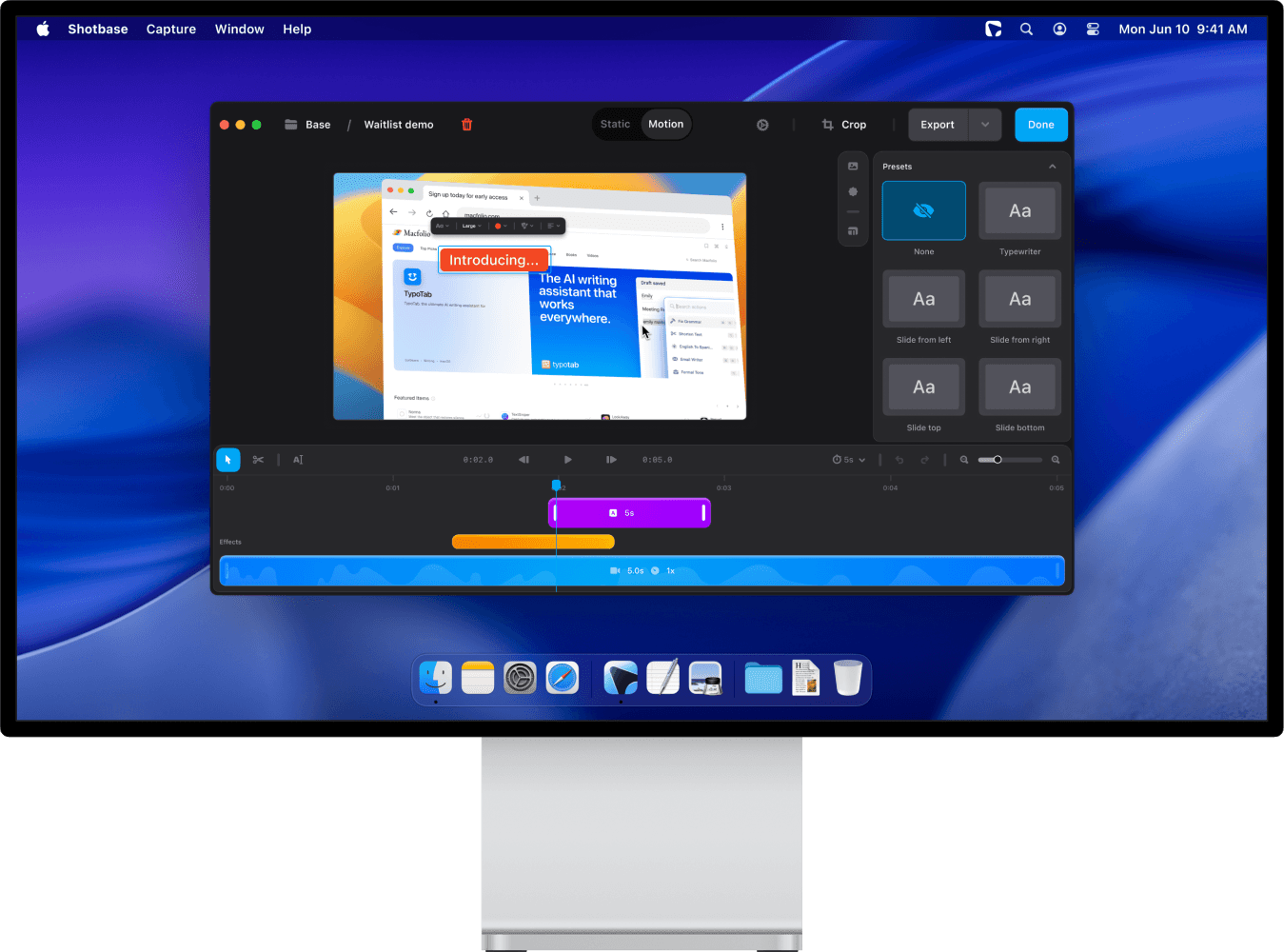
We build Shotbase, so we will be upfront about why we made it the way we did. A long screenshot is rarely the end of the job. You usually need to clean it up, point at something, share it, and find it again later. Shotbase handles each step in one app:
Scrolling screenshots for long content that does not fit on your screen, alongside area, window and full screen capture.
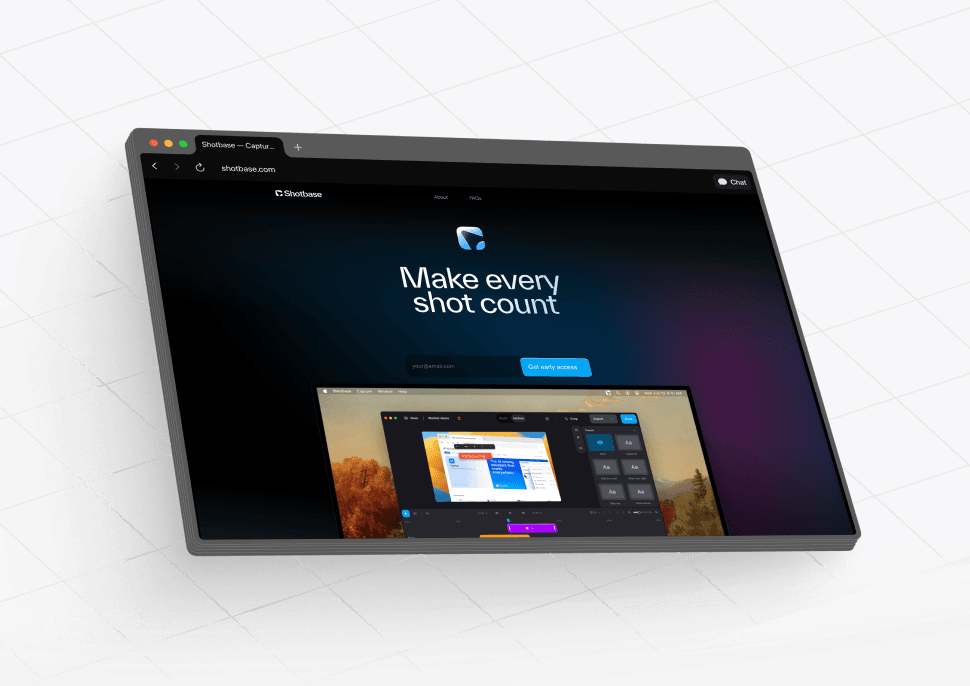
Webpage capture that grabs the entire page or only the viewport, at mobile, tablet, desktop or any custom breakpoint, and in light or dark mode. There is a dedicated keyboard shortcut for it.
An editor for backgrounds, frames, shadows, borders and watermarks, plus arrows, text, highlights, shapes and callouts.
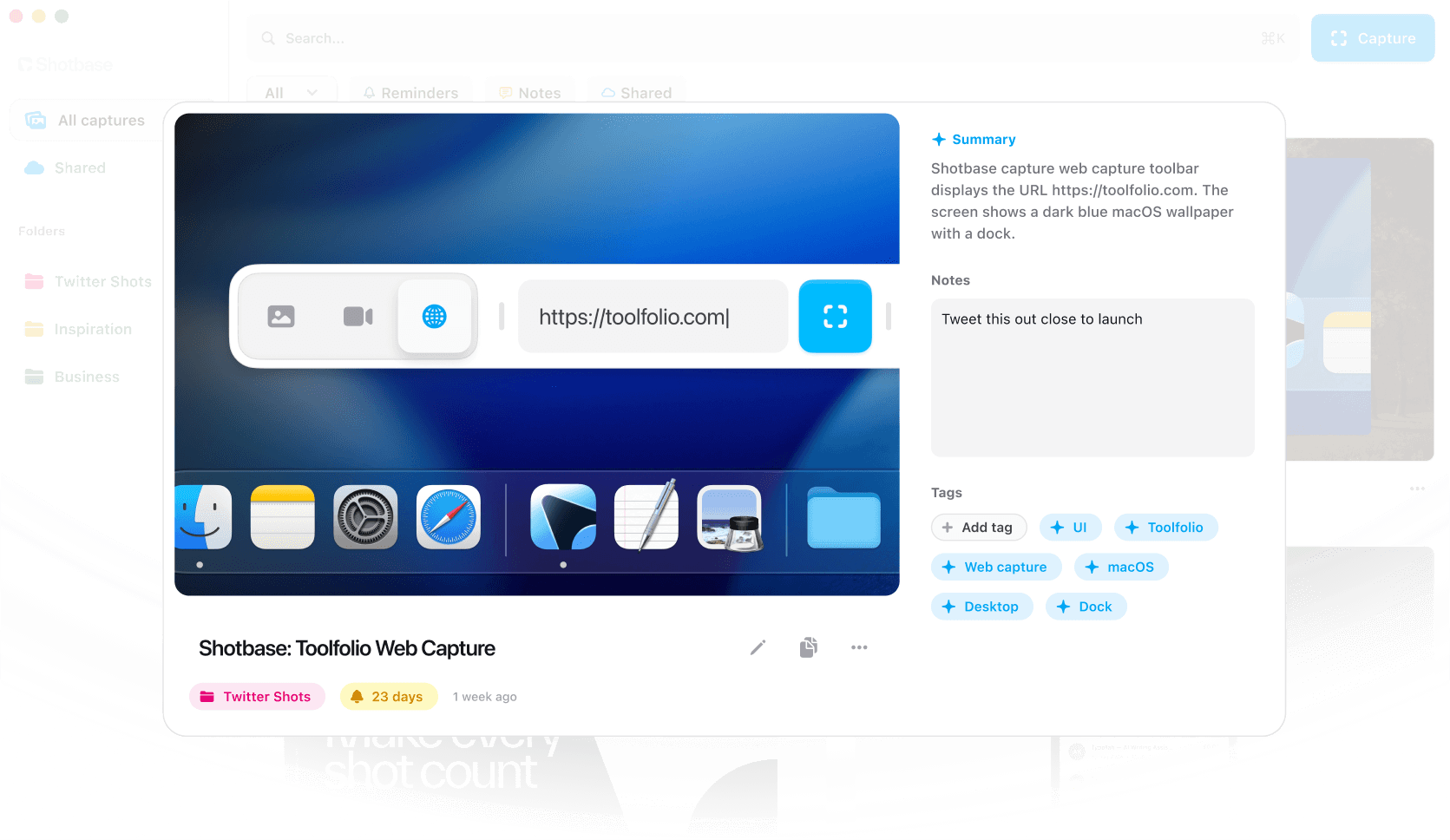
Private, on-device AI that gives each capture a useful name, tags and a short summary, so you can search for that long screenshot later by what is in it. Your image content is not sent to a remote model for analysis. This part needs a Mac with Apple silicon and is optional.
Share links you can paste into iMessage or anywhere else. People can view them in their browser and leave comments, without needing Shotbase.
Captures stay on your Mac by default. Shotbase only uploads something when you choose to create a share link or use another cloud feature.
The webpage capture is especially useful if you design or build websites. Instead of resizing your browser window or setting up DevTools every time, you can capture the same page at several breakpoints, in both light and dark mode, and keep all of them in one library.
Tips for a clean scrolling screenshot
Long screenshots go wrong in a few predictable ways. Here is how to avoid each one.
Images are blank further down the page
Many sites only load images when you scroll near them, a technique called lazy loading. Before you capture, scroll from the top to the bottom of the page once, give the images a moment to appear, then go back to the top and capture.
The header repeats or covers content
Sticky headers and chat bars stay fixed on screen while everything else scrolls, so tools that scroll and stitch can capture them more than once. Try a larger window, or close cookie banners and chat widgets before you start. In Chrome, you can select the header in the Elements panel and press H to hide it, then reload the page afterward to bring it back.
The page stops early
Very tall pages can hit size limits, as with Firefox's cropping warning above. Capture the page in a few overlapping sections, or save it as a PDF instead.
Only part of a web app gets captured
If a page scrolls inside a box rather than the whole window, browser tools often only see one screen's worth. A screenshot app with scrolling capture is usually the better choice here, because it captures what you actually see as it scrolls.
The text is too small to read
A full page of a long article can be thousands of pixels tall. If you plan to share it in a chat or a slide, consider capturing only the section that matters, or crop the long screenshot and add a highlight or arrow so people know where to look.
Which method should you use?
You need one webpage, once, for free: use Firefox's Take Screenshot or Chrome's DevTools command. Both are reliable on normal pages.
You use Safari and just need a record of the page: Export as PDF is the simplest.
You need long screenshots of chats, documents or apps: use a screenshot app with scrolling capture.
You capture webpages often, at different screen sizes, or need to annotate and share them: a dedicated app like Shotbase keeps the whole workflow in one place.
Frequently asked questions
Can you take a scrolling screenshot on a Mac without an app?
Only inside a browser. macOS itself does not support scrolling screenshots, but Chrome (DevTools), Firefox (Take Screenshot, then Save full page) and Safari (Web Inspector or Export as PDF) can all capture a full webpage. For anything outside the browser, you need a third-party screenshot app.
Does Shift + Command + 5 (⇧⌘5) take scrolling screenshots?
No. The Screenshot app captures the entire screen, a selected window, or a selected portion of the screen, and it can record your screen. It does not scroll.
How do I take a scrolling screenshot on a MacBook?
The steps are the same on a MacBook, iMac or any other Mac. Use one of the browser methods above for webpages, or a screenshot app with scrolling capture for everything else. On a trackpad, a two-finger tap works as a right-click for the Firefox and Safari steps.
How do I screenshot a whole webpage in Safari on Mac?
Turn on Show features for web developers in Safari's Advanced settings, open Web Inspector with Command + Option + I (⌥⌘I), right-click the html element in the Elements tab and choose Capture Screenshot. Or use File, then Export as PDF if a PDF works for you.
Why is part of my full page screenshot blank?
The page probably lazy loads its images, so they did not exist yet when the capture ran. Scroll through the whole page first, wait for everything to load, then capture again.
Can I take a scrolling screenshot of a chat or a document?
Not with the browser tools, unless the chat is a normal webpage. For apps like Messages, Slack, Notes or a code editor, use a screenshot app with scrolling capture.
Does Shotbase upload my screenshots?
No, not automatically. Screenshots, recordings and project files stay on your Mac by default. Shotbase only uploads a capture when you choose to create a share link or use another cloud feature.
Try Shotbase for your next long screenshot
If you take long screenshots often, or you want them named, tagged and easy to find later, try Shotbase free for 7 days. No card is required.