How to Record System Audio on Mac (and Fix Silent Recordings)
How to record system audio on Mac, and what to do when a screen recording has no sound. Check permissions, use Include System Audio on macOS 27, or record a separate system audio track in Shotbase.
· 8 min read
Key takeaways
- System audio is the sound your Mac is playing, not your microphone. Silent recordings are usually a permission, a missing option or a muted track, not a broken recorder.
- In System Settings, allow the app under Privacy & Security > Screen & System Audio Recording, and under Microphone if you also need your voice.
- On macOS 27 Golden Gate or later, the Screenshot app can record system audio through Options > Include System Audio.
- On earlier macOS versions, use an app that records system audio itself. Shotbase keeps system audio on its own track, with volume and mute.
- If the picture is fine and the file is still silent, confirm the Mac is not muted, then check the app's own audio mix.
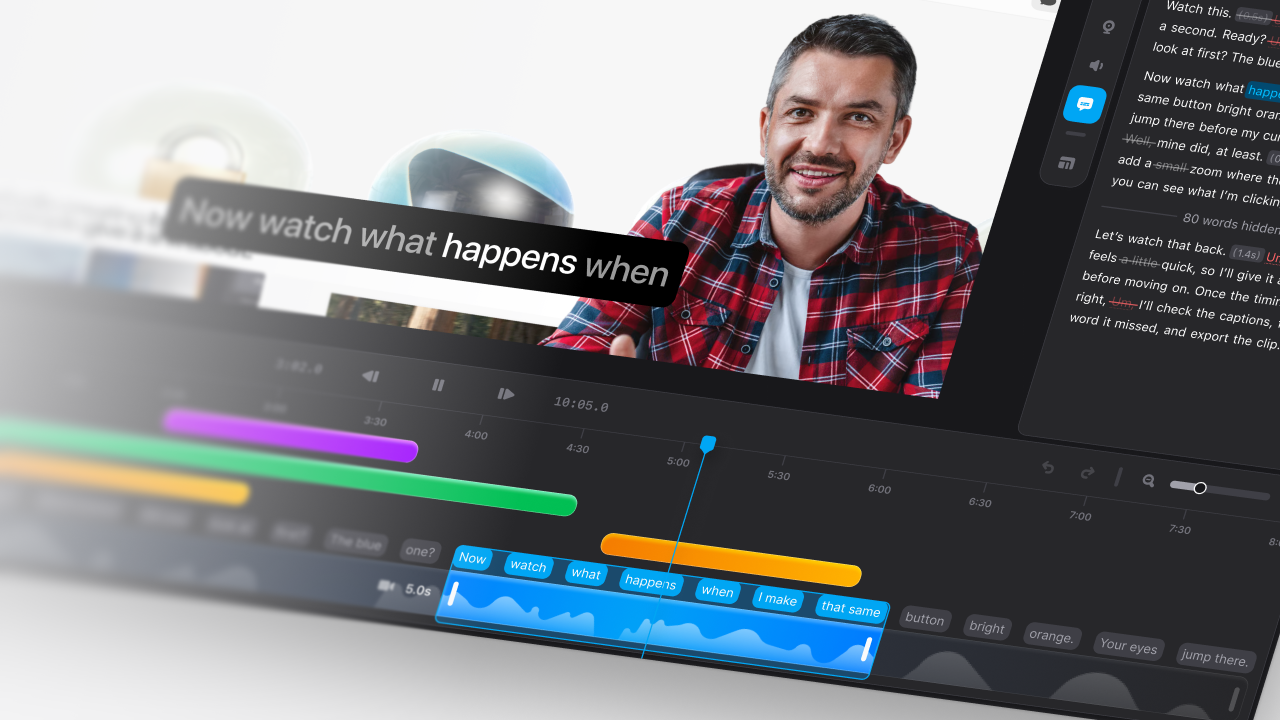
Short answer: system audio is the sound your Mac itself is playing, and a silent screen recording usually means that sound was never allowed, never turned on, or later muted. In System Settings, give the app access under Privacy & Security > Screen & System Audio Recording. On macOS 27 Golden Gate or later, the built-in Screenshot app can include that sound through Options > Include System Audio. If you are on an earlier macOS, or you want to fix the mix after you record, use Shotbase (our app), which keeps system audio on its own track.
This page is about permissions, missing sound and system audio. For the full recording workflow, including microphone steps, see How to Screen Record on Mac with Audio.
System audio is not your microphone
Two different sounds get blamed when a recording is quiet:
Microphone audio is your voice, or a mic on the desk. macOS gates this under Privacy & Security > Microphone, and Apple documents the fix in If you can't record audio on a Mac.
System audio is everything the Mac is already playing: a tutorial in the browser, an app's sound effects, a song, a meeting coming through headphones. macOS gates this together with screen recording.
You can grant one and not the other. You can also record a microphone perfectly and still miss the video that was playing on the screen. If your goal is "I need my Mac's sound in the file," you are in the right place.
Why a screen recording has no sound
Work through these in order. Most silent files fail at step 1 or 2.
The app is not allowed to record the screen and system audio. A new recorder often records a black or empty frame, or a frame with no computer sound, until you approve it.
System audio is not turned on in the recorder. On macOS 27, that is Include System Audio in the Screenshot app. In other apps it is a separate toggle. If it is off, you will get picture, and maybe your mic, but not the Mac's sound.
The microphone is set to None, if the sound you expected was actually your voice.
The Mac, or the app's output, is muted. Check the menu bar volume, whether sound was coming from headphones, and whether a track was muted in the editor.
You are on an earlier macOS version and you used only the built-in Screenshot app. Apple's September 14, 2026 guide lists Include System Audio for macOS 27 Golden Gate or later, not for older versions.
Some apps also cannot legally or technically capture protected streams. If one specific site is silent while every other app is fine, that may be the source, not your permissions.
Step 1: grant screen and system audio permission
Apple's guide, Control access to screen and system audio recording on Mac, is the source for this path:
Choose Apple menu > System Settings, then click Privacy & Security in the sidebar.
Click Screen & System Audio Recording.
For the app you are using, turn recording on. Apple notes that you can allow an app to record both your screen and audio, or just your audio.
If the app is not in the list, add it, then open the app again and start a new recording.
If you also need your voice, open Privacy & Security > Microphone and enable the same app. Quit and reopen the app after you change either permission. A recorder that was already running often will not pick up a new approval until it restarts.
Shotbase, like any capture app, needs these permissions to do its job. The download page asks you to sign in and grant the permissions needed to capture on your Mac. We are not inventing the exact onboarding screens here; the macOS settings above are the ones that actually unlock system audio.
Step 2: record system audio with the built-in Screenshot app
If your Mac is running macOS 27 Golden Gate or later, you can do this without installing anything. These steps come from Apple's How to record the screen on Mac guide:
Press Shift + Command + 5.
Choose a recording option: entire screen, selected portion, or (on macOS Tahoe 26 or later) a selected window.
Click Options, choose a microphone if you also want your voice, and choose Include System Audio.
Click Record, then stop from the menu bar or with Command + Control + Esc.
Play a known sound during a ten-second test, then watch the clip. If you hear the Mac's sound, you are done. If you do not, go back to Step 1 and confirm the Screenshot app (or the process it uses) is allowed to record system audio.
On earlier macOS versions, the Screenshot app can still record a microphone, but Apple does not list a built-in system audio switch. In that case, use an app that records system audio itself, rather than hunting for a hidden checkbox that is not there.
QuickTime's File > New Screen Recording often opens the same Screenshot toolbar on current macOS, so the same Include System Audio option applies there when you are on macOS 27. Apple's guide does not list a system audio setting in QuickTime's older Screen Recording window.
Step 3: record system audio in Shotbase, and fix the mix after
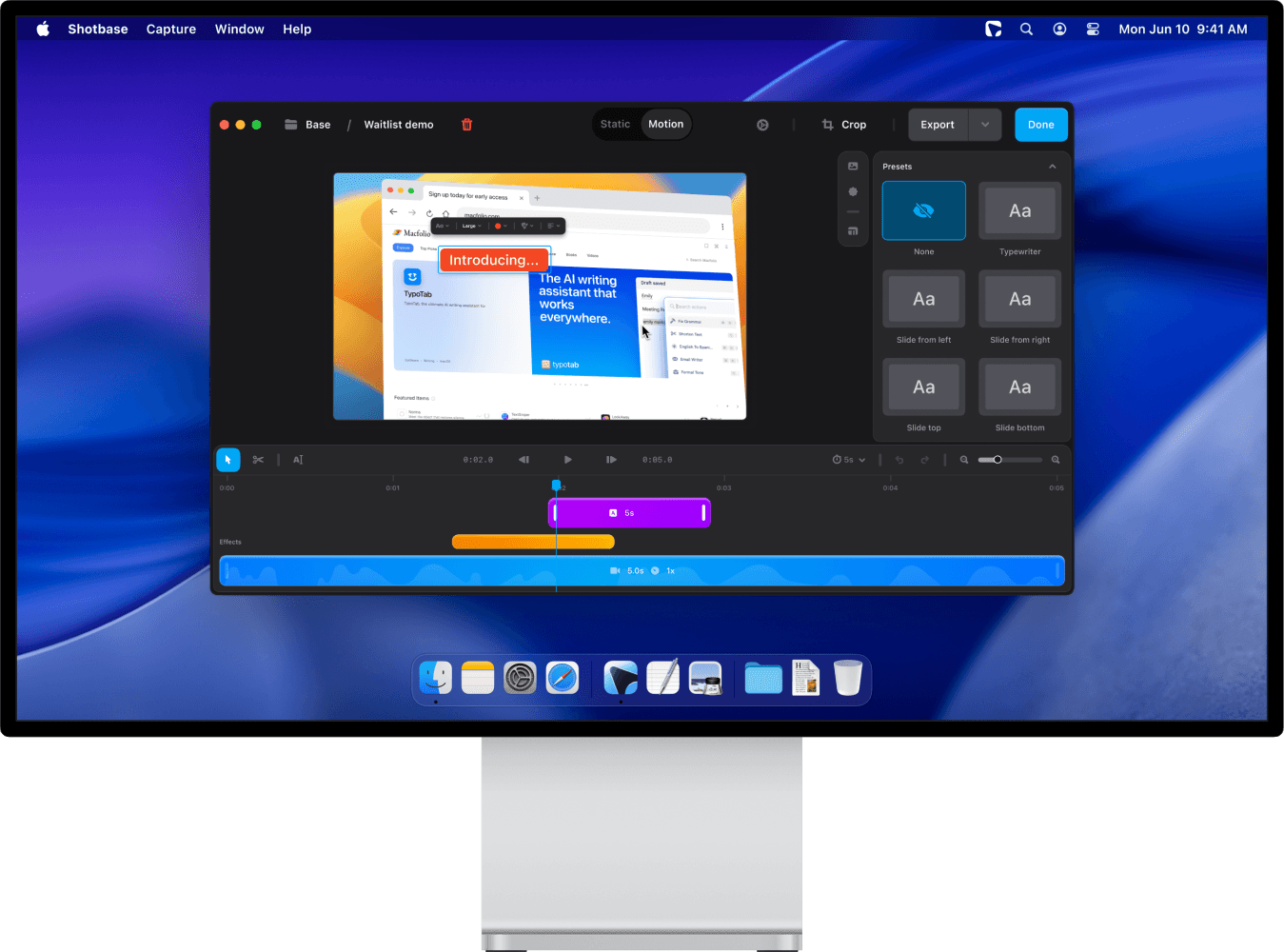
We build Shotbase. The changelog for version 1.8.0 (November 12, 2026) is the official description of the audio editor: you can adjust microphone, system audio and background audio separately, with individual volume and mute controls and a master volume. You can also import background audio and loop it, and you can apply microphone presets (Standard, Loud, Warm, Noise reduction or Podcast, or Off).
That is the practical advantage when a recording is almost right. If the Mac's sound is too loud for your voice, you lower the system audio track instead of recording again. If you only wanted the voice, you mute system audio. If the file is silent, you can see whether the system audio track is present and muted, which is faster than guessing.
The workflow is:
Make sure Shotbase is allowed under Screen & System Audio Recording, and under Microphone if you will talk.
Start a screen recording and include system audio (and the microphone, if you need it).
Play the sound you want to capture, then stop the recording.
In the editor, look at the system audio track. Raise it, lower it or unmute it. Use the microphone track the same way for your voice.
Export the video, or create a shareable link that opens in a browser.
We can document those editor controls from the changelog. We do not yet have a confirmed screenshot of the exact pre-record toggle labels in the capture bar, so if a control name in your build differs, trust the labels in the app and the mix in the editor.
Audio waveforms, added in version 1.7.1, make quiet speech easier to see while silence stays flat, without changing the audio. That helps you spot a silent take immediately. You can also add mouse-click sounds to a recording, with matching audio in preview and export, a 1.6.0 feature.
Captures remain local by default. Shotbase only uploads a recording when you explicitly create a shareable link or use another cloud-based feature. There is a 7-day free trial, with no card required. Pro is $13 a month billed yearly or $25 monthly, as listed on shotbase.com on November 23, 2026.
Other recorders also list system audio on their sites, including Screen Studio ("your Mac's sound"), CleanShot X (microphone and system audio) and Tella. The best screen recorders guide compares those options more broadly.
A short checklist if the recording is still silent
Replay a file you know has sound, to confirm the speakers or headphones work.
Confirm Screen & System Audio Recording is on for the app, then quit and reopen it.
Confirm Microphone is on if you expected a voiceover.
On macOS 27, confirm Include System Audio was selected before you recorded.
In Shotbase, confirm the system audio track exists and is not muted, and that the master volume is up.
Record a ten-second test with a Music or YouTube clip you can legally use as a test tone, then inspect that file before you redo a long take.
If only one website is silent, try a different source. If every source is silent, it is still a permission or a setting.
Frequently asked questions
How do I record system audio on a Mac?
Grant the recorder access under System Settings > Privacy & Security > Screen & System Audio Recording. On macOS 27 Golden Gate or later, press Shift + Command + 5, open Options, and choose Include System Audio. On earlier versions, use an app such as Shotbase that records system audio on its own track.
Why does my Mac screen recording have no sound?
The usual causes are a missing Screen & System Audio Recording permission, a microphone set to None, system audio left off, a muted output, or using the built-in Screenshot app on a macOS version that does not yet offer Include System Audio.
Can I record system audio and my microphone at the same time?
Yes. In the Screenshot app on macOS 27, choose both a microphone and Include System Audio. In Shotbase, record both, then adjust each track separately in the editor.
Does QuickTime record system audio?
On current macOS, New Screen Recording often opens the Screenshot toolbar, so Include System Audio is available there on macOS 27 or later. Apple's guide does not list a system audio option for QuickTime's older Screen Recording window.
Does Shotbase upload my recordings automatically?
No. Recordings and project files remain local by default. Shotbase only uploads a capture when you explicitly create a shareable link or use another cloud-based feature.
Try Shotbase when you need the Mac's sound in the mix
If you want system audio on its own track, with a chance to fix the mix before you share, try Shotbase free for 7 days. No card is required.