The Best Screen Recorders With Automatic Zoom for Mac (2026)
Automatic zoom turns a flat screen recording into a demo people can follow. We compare the Mac screen recorders that add zooms for you, Shotbase, Screen Studio, CleanShot X, Cap and Tella, on features and real prices, and explain how auto zoom works.
· 8 min read
Key takeaways
- Automatic zoom follows your clicks and cursor and zooms in on the moments that matter, so viewers can read small text without you editing by hand.
- Shotbase adds automatic zooms, 3D motion and captions to recordings, and also handles screenshots, webpage capture and a searchable library.
- Screen Studio is the most focused video tool: $9 a month billed yearly or $29 month to month.
- CleanShot X added smart zooms in version 5.0 and costs $35 once. Cap is free for personal use.
- Tella pairs auto zoom with browser-based editing and hosting, from $13 per user a month billed annually.
Short answer: if you record demos and also take screenshots every day, Shotbase (our app) gives you automatic zooms, 3D motion and captions for recordings, plus screenshots, webpage capture and a searchable library in one Mac app. If you only make videos, Screen Studio is the most focused recorder. CleanShot X is the cheapest one-time option since version 5.0 added smart zooms, Cap is free for personal use, and Tella suits teams that want editing and hosting in the browser.
Below is how automatic zoom works, what to look for, and how the five apps compare. Every feature and price comes from each app's own website, checked in November 2026.
What is automatic zoom in a screen recording?
A full screen recording on a big display makes everything small. Viewers on a laptop or phone cannot read the button you clicked or the text you typed. The classic fix is to zoom in by hand in a video editor, which means setting keyframes for every moment that matters.
Automatic zoom does that for you. While you record, the app logs where your cursor is and where you click. Afterward it adds smooth zooms that move in on the action and back out when you move on. Good apps let you adjust, move or delete each zoom on a timeline, so you keep control without starting from zero.
It is the reason "Screen Studio style" demos became so popular: a recording with zooms, a smooth cursor and a nice background looks produced, even when it took one take.
What to look for in an auto zoom screen recorder
Editable zooms. Automatic is a starting point. You should be able to change or remove any zoom.
Cursor polish: smoothing, size and click effects make every move easier to follow.
Camera and audio: a webcam layout, microphone and system audio, and ideally voice cleanup.
Captions and transcript editing, which help on social platforms where videos play muted.
Aspect ratios for wide, square and vertical exports from one take.
Sharing: a link people can open in a browser, ideally with comments.
Everything else you capture. If you also take screenshots every day, an app that does both saves you a second subscription.
Auto zoom screen recorders for Mac at a glance
| App | Automatic zoom | Screenshots | Captions | Price | Best for |
|---|---|---|---|---|---|
| Shotbase | Yes, plus 3D transforms and text effects | Yes, including scrolling capture in any app and webpage capture | Yes, styled captions from an on-device transcript | 7-day free trial, then $13 a month billed yearly or $25 monthly | Recordings and screenshots in one app, with a searchable library |
| Screen Studio | Yes, plus manual zooms | Not listed on its site | Yes, generated on your Mac | $9 a month billed yearly or $29 monthly | Dedicated video demos and tutorials |
| CleanShot X | Smart zooms in Studio Mode | Yes, including scrolling capture | Not listed for Studio Mode | $35 once (1 year of updates) | Screenshot users who record now and then |
| Cap | Yes, zooms on every click | Yes, Screenshot Mode | Yes | Free for personal use, $29 a year or $58 once for commercial use | Free and open source, Mac, Windows and Linux |
| Tella | Yes, Auto Zoom | Not listed | Yes, subtitle editing and styling | From $13 per user a month billed annually, 7-day free trial | Teams that edit and host in the browser |
1. Shotbase: best for recordings and screenshots in one app
We build Shotbase, so we put it first and we will be clear about where it fits and where it does not. We made it for people who were paying for a screenshot app and a recording app, then still losing track of what they captured.
For recordings, Shotbase follows the action for you:
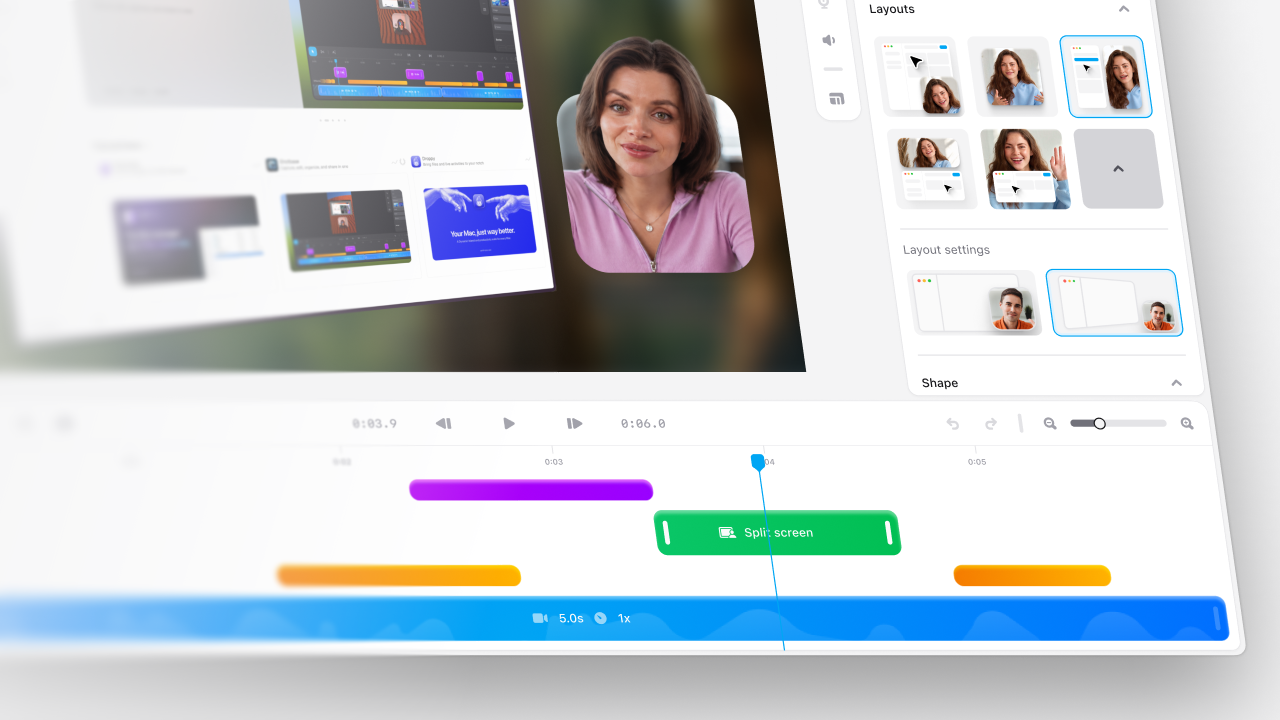
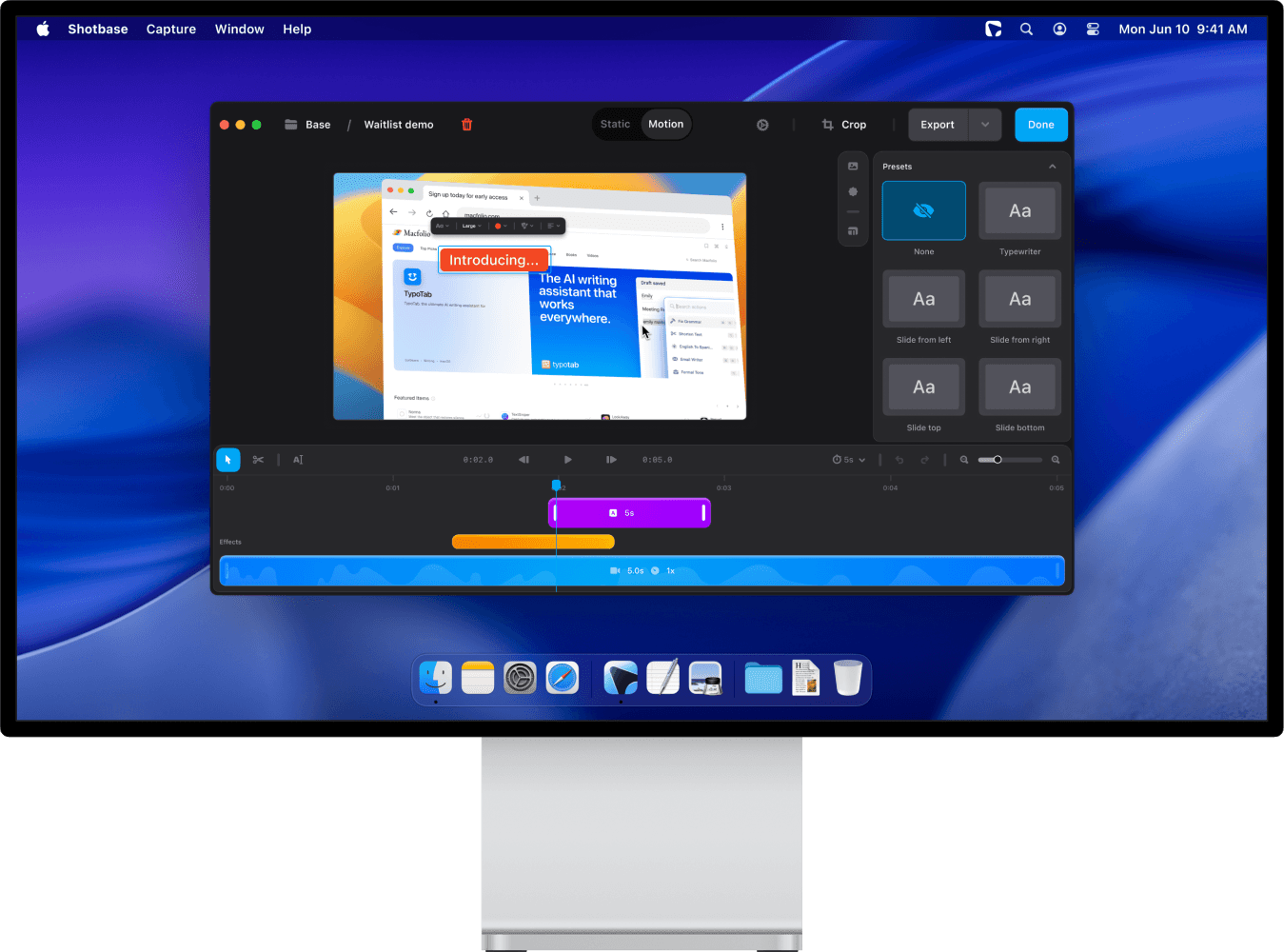
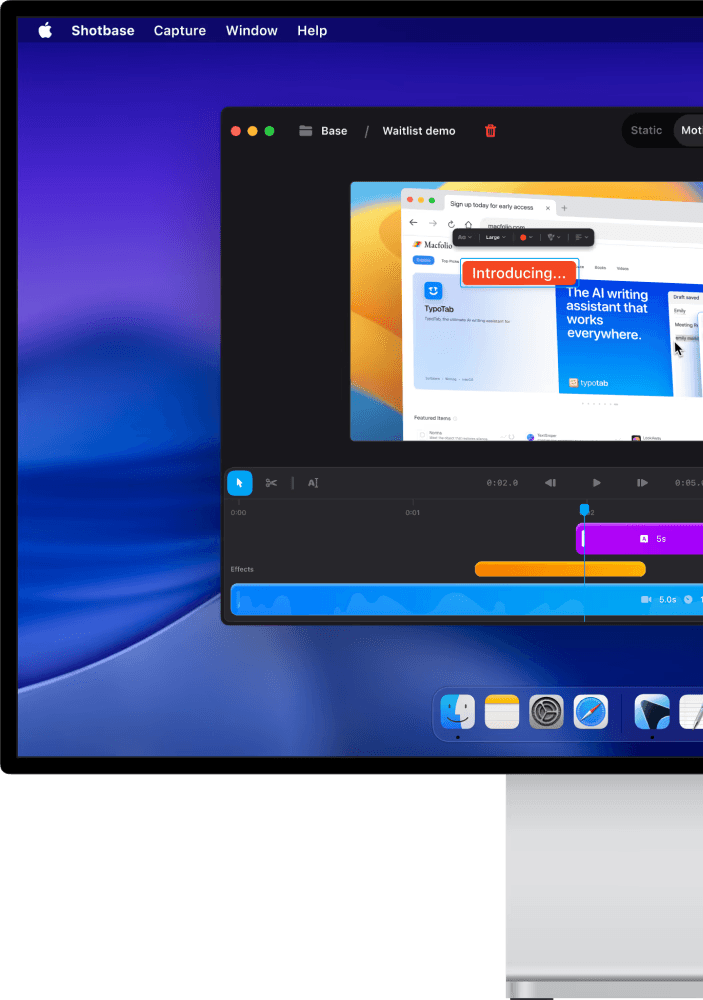
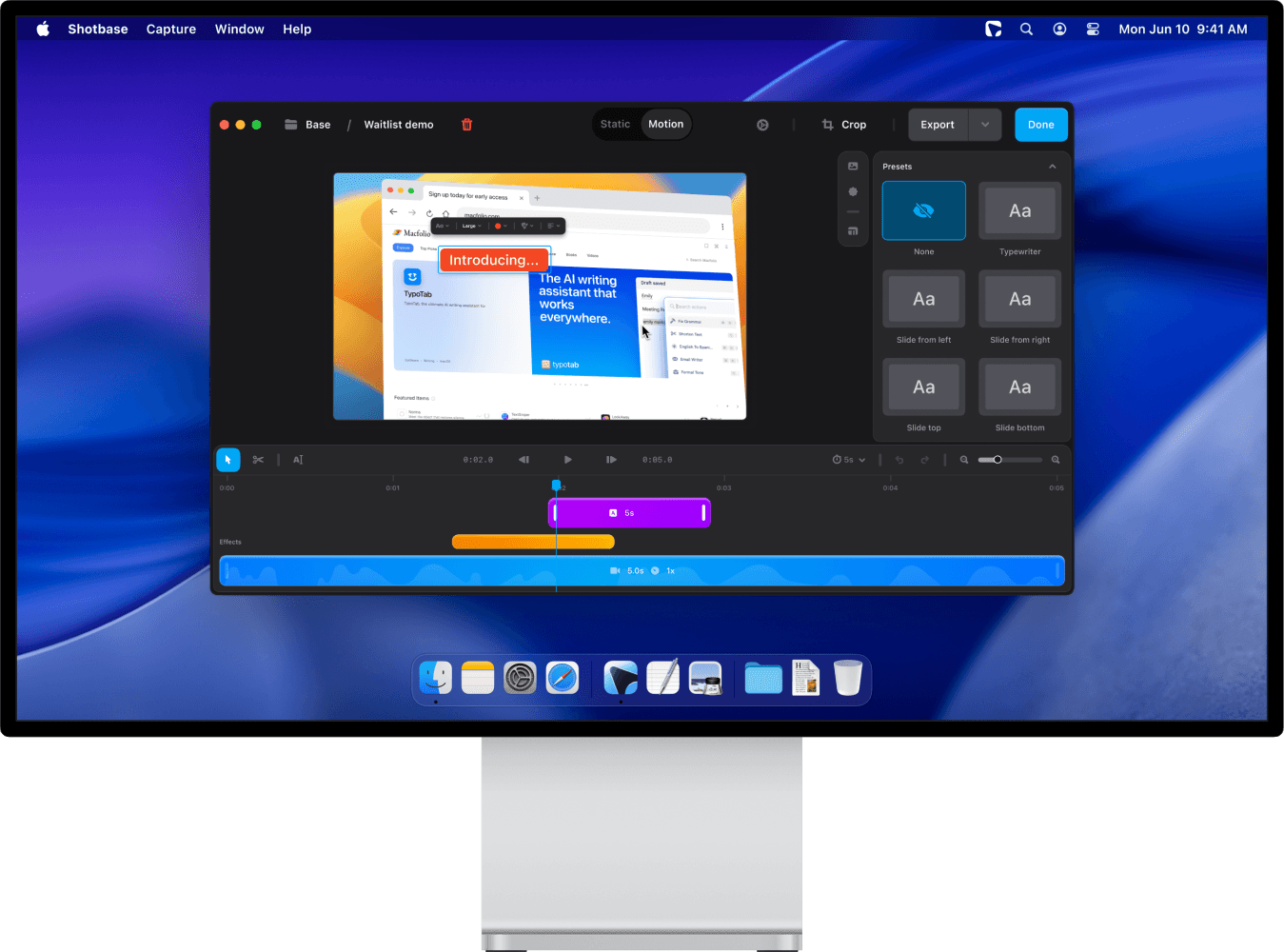
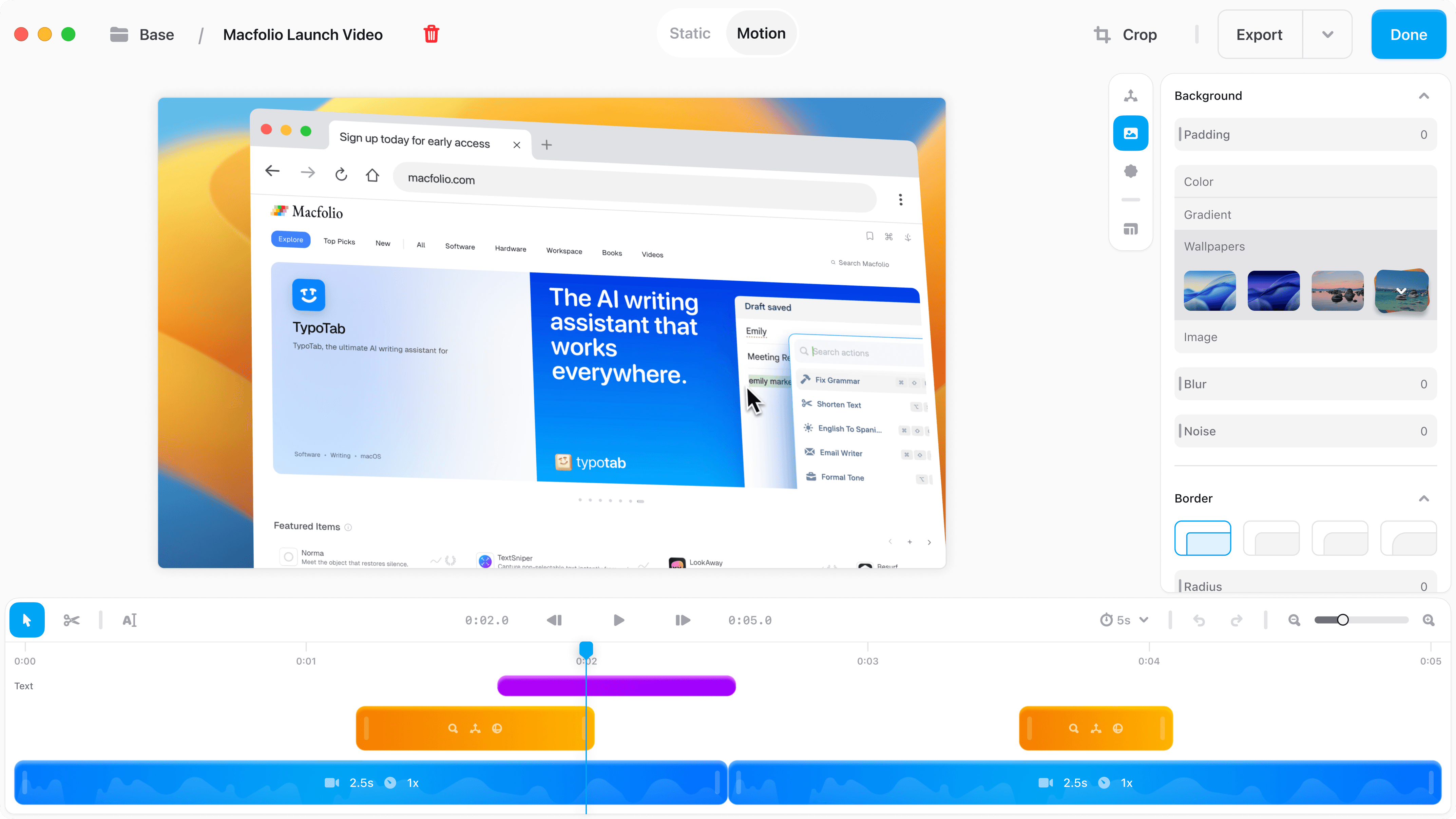
Automatic zooms bring important moments closer. They appear on the timeline in the motion editor, where you can adjust them, and they stay aligned when you change the frame ratio.
3D transforms and text effects add depth and movement, so a flat recording feels produced.
Camera layouts you can switch at specific moments of a recording: fullscreen camera, split screen, short-form and presenter, with a camera cutout and an option to hide the camera when you stop talking.
On-device transcripts you can edit to cut footage, remove filler words and shorten pauses, plus styled captions and export to SRT or VTT.
Audio controls for microphone, system audio and background audio, with presets including noise reduction and Podcast.
Share links that open in any browser, with comments pinned to a timestamp.
The difference from the other recorders here is everything around the video. The same app takes area, window, full screen and scrolling screenshots in any app, captures webpages at any breakpoint in light or dark mode, and keeps it all in one library. Its on-device AI names, tags and summarizes every capture, and search also finds the text inside your screenshots, so you can find last month's demo or an old error message by a word you remember.
Price: a 7-day free trial with no card required. Shotbase Pro is $13 a month billed yearly ($156 a year), or $25 month to month.
Skip it if: you want a one-time purchase, you need Windows, or you need iPhone recording over USB. Some features have extra requirements: the local AI needs Apple silicon, transcription needs macOS 26, and noise reduction needs Apple silicon and macOS 15 or later.
2. Screen Studio: best dedicated video recorder
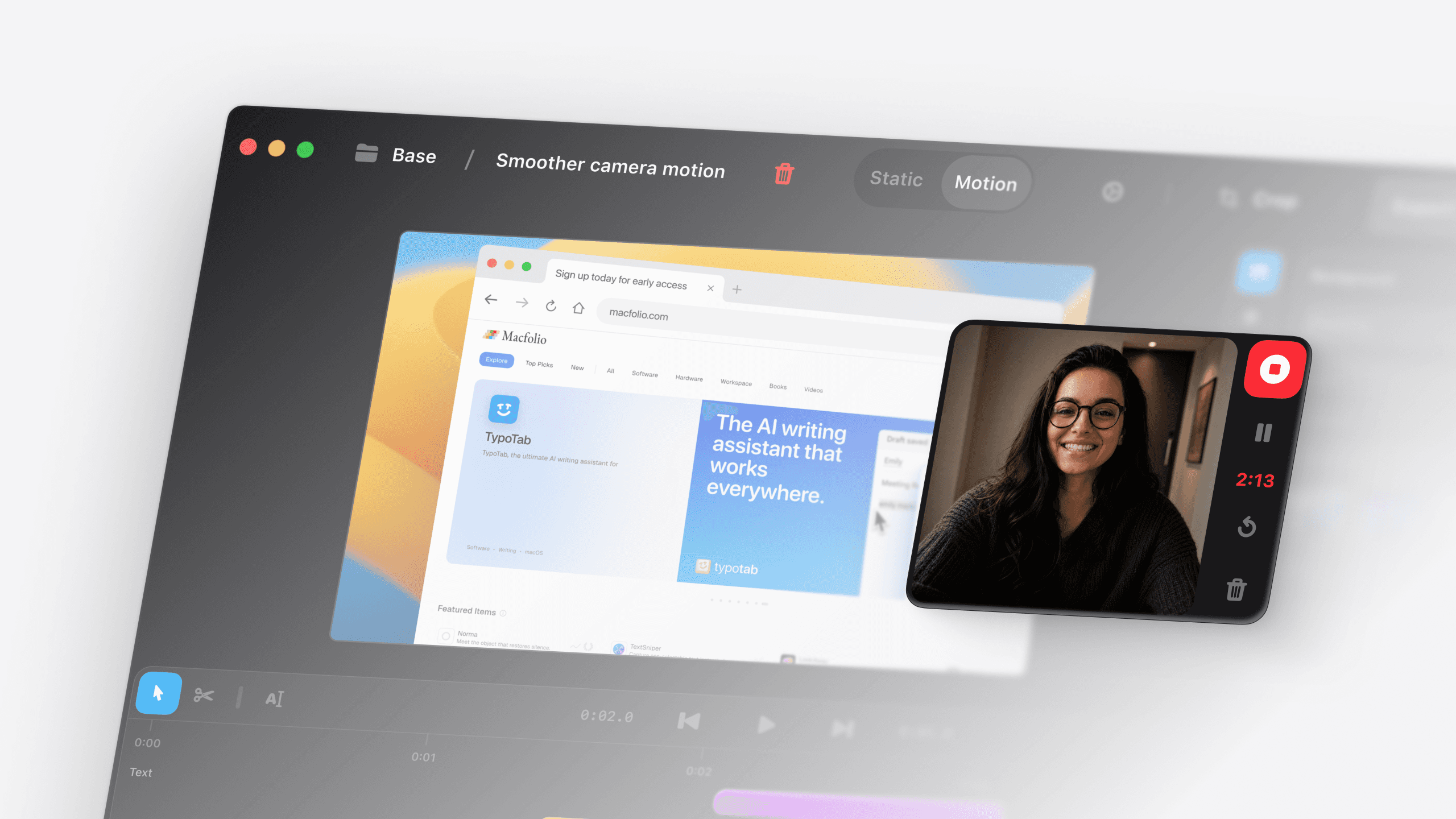
Screen Studio made auto zoom demos popular, and it is still the most focused tool for them. It zooms automatically based on what you did while recording, like where you clicked, and lets you add manual zooms anywhere. It has two zoom styles (classic and loupe) and its own on-device upscaler to keep zoomed text sharp.
Around that it adds smooth cursor movement, motion blur, click effects, camera layouts with background cutout and face tracking, editing by transcript, noise reduction, on-device captions, and recording of a connected iPhone or iPad over USB. One take can become a wide, square or vertical video, and zooms re-aim for each shape. Share links play in 1080p at 60 fps for videos up to 30 minutes, with comments.
Price: $9 a month billed yearly, or $29 month to month, with every feature in every plan. Students and educators get 40% off. macOS 13.1 or later is recommended.
Skip it if: you also need screenshots. Its site does not list a screenshot mode, so you will need a second app for those.
3. CleanShot X: best one-time purchase
CleanShot X is best known as a screenshot app, and version 5.0 (1 September 2026) added Studio Mode: a video editor with smart zooms that follow your cursor, smooth cursor movement, motion blur, backgrounds and trimming. You can adjust cursor size, keystrokes and camera after recording and export landscape, square or vertical video.
Price: $35 once with one year of updates (optional renewal at $19 a year), or CleanShot Pro at $10 per user a month billed annually with unlimited cloud storage. No free trial, but a 30-day money-back guarantee. Requires macOS 13.0 or newer.
Skip it if: you need captions, transcript editing or camera layouts. Studio Mode does not list them.
4. Cap: best free option
Cap is open source and runs on Mac, Windows and Linux. Its Studio Mode records locally in up to 4K with separate screen, camera and mic tracks, then opens an editor where Cap zooms in on every click and follows your cursor. It also adds backgrounds, cursor effects, layouts and captions, and has a Screenshot Mode for good-looking window captures.
Price: free for personal use, including the full editor and 4K export at 60 fps, plus 25 share links a month of up to 5 minutes each. Commercial use needs a Desktop License at $29 a year or $58 once. Cap Pro, with unlimited cloud sharing and team features, is $12 per user a month. Requires macOS 13.1 or newer.
Skip it if: you record for work and do not want to pay for a license, or you want an AI library for your captures.
5. Tella: best for teams that edit in the browser
Tella combines a Mac recorder with browser-based editing and hosting. Its plans include Auto Zoom, transcript editing, silence and filler word removal, auto layouts, subtitle editing and styling, and AI audio enhancement. Videos upload automatically, so you share a link instead of a file.
Price: Pro is $13 per user a month and Premium is $19 per user a month, both billed annually, with a 7-day free trial. The Mac app needs macOS 13 Ventura or later.
Skip it if: you want everything to stay on your Mac, or you need a screenshot tool too.
Which auto zoom recorder should you choose?
You record demos and take screenshots every day: Shotbase, so both live in one app and one searchable library.
Video is your main output and you already have a screenshot tool: Screen Studio.
You mostly take screenshots and want to pay once: CleanShot X.
You want free, or you also use Windows or Linux: Cap.
Your team edits and shares videos together in the browser: Tella.
How to make a demo with automatic zoom look good
Whichever app you pick, a few habits make automatic zoom work better:
Record at a sensible window size. A huge window means bigger zooms. Many apps can resize the window you record to a fixed size.
Move the cursor on purpose. Auto zoom follows your clicks and pointer, so slow, deliberate moves give smoother results.
Pause briefly after each click. It gives the zoom time to land before you move on.
Hide clutter first. Close notifications and hide desktop icons.
Review every zoom. Delete the ones that do not help, then export a wide version and, if you post on social, a vertical one.
Frequently asked questions
Which screen recorder has automatic zoom on Mac?
Shotbase, Screen Studio, CleanShot X (in Studio Mode since version 5.0), Cap and Tella all add zooms automatically based on your cursor or clicks.
Is there a free screen recorder with auto zoom for Mac?
Yes. Cap is free for personal use and includes automatic zoom in its editor. Commercial use needs a paid license. Shotbase has a 7-day free trial with no card required.
Can I edit automatic zooms after recording?
Each app here adds its zooms in an editor after recording, so you can review them before you export. In Shotbase and Screen Studio they sit on the timeline, where you can change them.
Do I need a separate screenshot app?
With Screen Studio or Tella, probably yes, since neither lists a screenshot tool. Shotbase, CleanShot X and Cap all take screenshots too, and Shotbase adds scrolling capture in any app, webpage capture and a searchable AI library.
Does Shotbase upload my recordings?
No, not automatically. Screenshots, recordings and project files stay on your Mac by default. Shotbase only uploads a capture when you choose to create a share link or use another cloud feature.